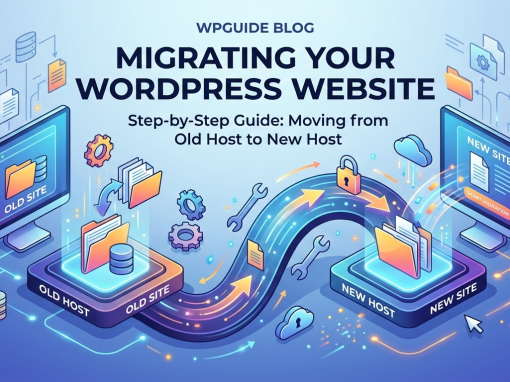
Moving a WordPress website to a new host or server might sound complicated, but it is actually quite straightforward when you follow a proper process.
Whether you are upgrading to a faster hosting provider, moving to managed hosting, or transferring your site to another server, this guide will walk you through every step of a WordPress migration — from preparation to post-migration checks.
This guide is written for beginners and explains everything you need to check before, during, and after a migration to avoid broken websites, missing images, or SEO issues.
What is WordPress Migration?
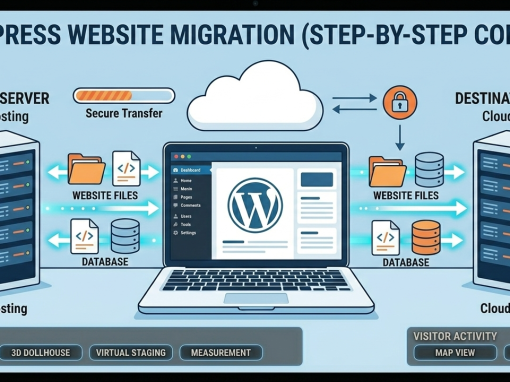
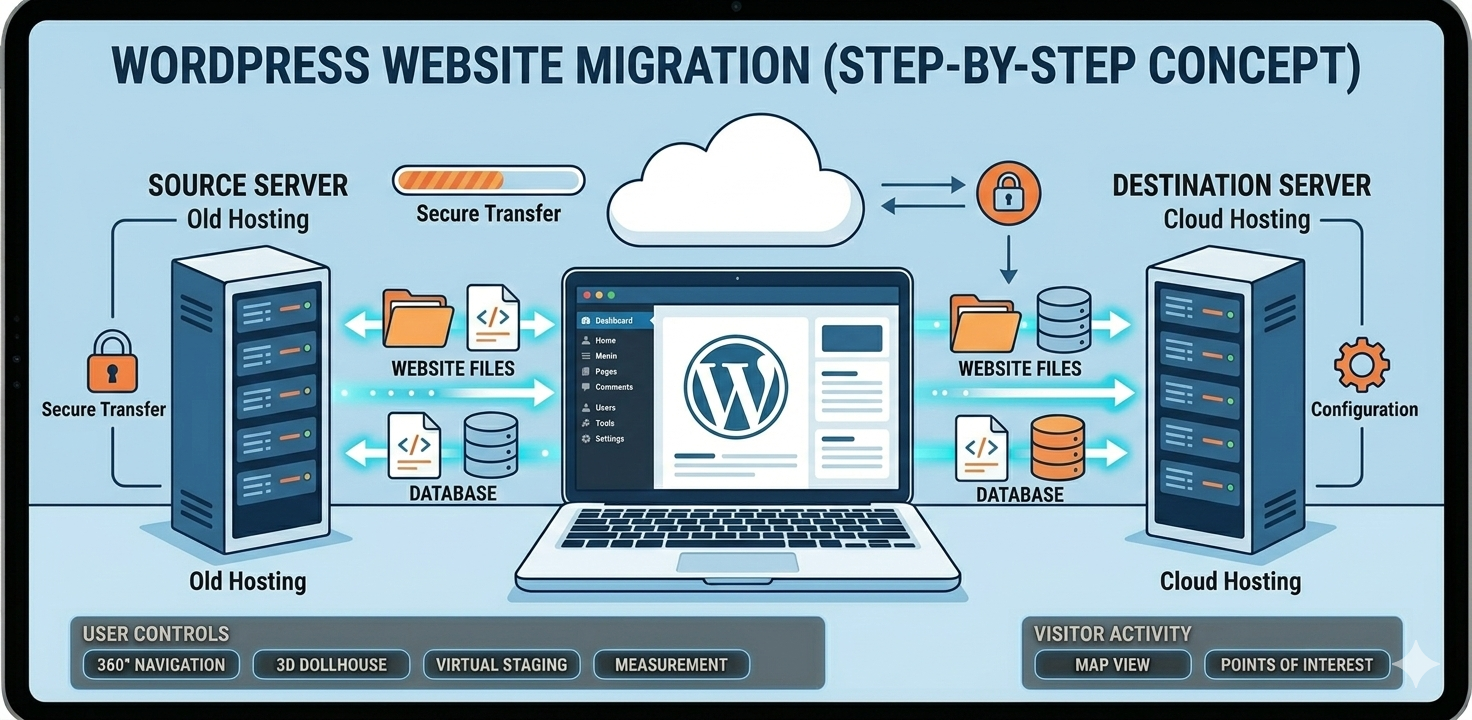
WordPress migration means moving your website files and database from one hosting server to another.
This can happen for several reasons:
• Moving to a faster web host
• Changing hosting providers
• Moving from shared hosting to VPS or cloud
• Migrating from development server to live website
• Moving a site from localhost to live hosting
A complete WordPress site consists of two main components:
- Website files
- Database
Both must be transferred correctly for the website to work.
Before Migrating WordPress (Important Checklist)
Before starting the migration process, there are a few things you should do to avoid problems later.
1. Backup Your Entire Website
Always create a full backup before migrating.
Backup both:
• WordPress files
• WordPress database
You can use plugins such as:
• UpdraftPlus
• All-in-One WP Migration
• Duplicator
• BackupBuddy
Or download manually via:
• File Manager / FTP
• phpMyAdmin
Never migrate without a backup.
2. Lower DNS TTL (Optional but Recommended)
If you are moving to a new host, reduce the DNS TTL to around 300 seconds before migration.
This allows the domain to switch servers faster when you update the DNS later.
3. Clean Your Website
Migration is a good time to clean your website.
Delete:
• Unused plugins
• Unused themes
• Old backups
• Spam comments
• Orphan images
This reduces the size of the migration.
4. Update WordPress Before Migration
Make sure everything is updated:
• WordPress core
• Plugins
• Themes
This prevents compatibility problems on the new server.
WordPress Migration Methods
There are three common ways to migrate WordPress.
1. Plugin Migration (Easiest)
Use migration plugins such as:
• All-in-One WP Migration
• Duplicator
• WP Migrate
• UpdraftPlus Migration
Best for beginners.
👉 Read Best WordPress Migration Plugins (2026 Comparison Guide)
2. Manual Migration
This involves:
• Downloading files via FTP
• Exporting the database
• Importing into the new host
More control but slightly technical.
3. Hosting Provider Migration
Many hosting companies offer free WordPress migration services.
If available, this is often the safest method.
Manual WordPress Migration (Step-by-Step)
Here is the full manual process.
Step 1: Download WordPress Files
Connect to your server using:
• FTP (FileZilla)
• Hosting File Manager
Download everything inside:
/public_html/
or
/www/
Important folders include:
wp-content
wp-admin
wp-includes
Step 2: Export the WordPress Database
Go to:
cPanel → phpMyAdmin
Select your WordPress database.
Click:
Export → Quick Export → SQL
Download the database file.
Step 3: Create a New Database on the New Server
On the new hosting server:
- Go to MySQL Databases
- Create a new database
- Create a database user
- Assign the user to the database
- Give All Privileges
Save these details:
• Database name
• Database username
• Database password
You will need them later.
Step 4: Upload WordPress Files to New Host
Upload the files you downloaded earlier to the new server.
Use:
• FTP
• File Manager
Upload them into:
public_html
Step 5: Import the Database
Go to:
phpMyAdmin → New Database → Import
Upload the SQL file you exported earlier.
This restores all your posts, pages, settings, and content.
Step 6: Update wp-config.php
Edit the wp-config.php file and update the database details.
Find this section:
define('DB_NAME', 'database_name');
define('DB_USER', 'database_user');
define('DB_PASSWORD', 'database_password');
define('DB_HOST', 'localhost');
Replace with your new database credentials.
Step 7: Update Domain DNS
If the domain stays the same but the server changes, update the DNS.
Change the nameservers or A record to the new hosting provider.
DNS propagation usually takes a few minutes to 24 hours.
WordPress Settings to Check After Migration
Once the site loads on the new server, check these important settings.
1. Check Permalinks
Go to:
Settings → Permalinks
Click Save Changes.
This refreshes WordPress rewrite rules and fixes many 404 errors.
2. Check Site URL
Go to:
Settings → General
Verify:
WordPress Address (URL)
Site Address (URL)
These should match your domain.
Example:
https://yourdomain.com
3. Check File Permissions
Typical permissions:
Folders
755
Files
644
Incorrect permissions may cause upload errors or security issues.
4. Check Image Links
Sometimes images break after migration.
Check:
• Blog posts
• Pages
• Media library
If images are broken, run a search and replace.
Plugins that help:
• Better Search Replace
• WP Migrate DB
5. Test All Forms
Contact forms may stop working if email settings change.
Test:
• Contact forms
• Quote forms
• Registration forms
You may need to configure SMTP.
Plugins:
• WP Mail SMTP
• FluentSMTP
6. Check SSL Certificate
If your site uses HTTPS, ensure SSL is active.
Check:
• HTTPS loads correctly
• No mixed content warnings
If needed, reinstall SSL or force HTTPS.
7. Check Caching and CDN
If you use caching or CDN:
• Clear all caches
• Reconnect CDN if required
Examples:
• Cloudflare
• LiteSpeed Cache
• WP Rocket
8. Check Cron Jobs
Some plugins rely on cron jobs.
Verify scheduled tasks work:
• Backups
• Membership renewals
• Scheduled posts
9. Reconnect External Services
After migration, some services may need reconnecting.
Examples:
• Google Analytics
• Google Search Console
• Email services
• Payment gateways
SEO Checks After WordPress Migration
Migration can affect SEO if done incorrectly.
Check the following.
Check for Broken Links
Use tools like:
• Broken Link Checker
• Screaming Frog
Fix any broken links.
Verify Robots.txt
Ensure robots.txt is correct and not blocking search engines.
Example:
User-agent: *
Allow: /
Check Sitemap
Verify your sitemap is working.
Example:
https://yourdomain.com/sitemap.xml
Resubmit it to Google Search Console if needed.
Check Google Indexing
Search:
site:yourdomain.com
Make sure pages are still indexed.
Common WordPress Migration Problems
Here are common issues and how to fix them.
White Screen of Death
Usually caused by:
• Plugin conflict
• PHP version mismatch
Fix by disabling plugins via FTP.
Database Connection Error
This means database details in wp-config.php are incorrect.
Check:
• Database name
• Database username
• Database password
404 Errors After Migration
Fix by:
Settings → Permalinks → Save Changes
Missing Images
Run a search and replace to update old URLs.
WordPress Migration Checklist
Before migration
✔ Backup website
✔ Update plugins and themes
✔ Clean unused files
✔ Lower DNS TTL (optional)
During migration
✔ Export database
✔ Download website files
✔ Upload files to new server
✔ Import database
✔ Update wp-config.php
After migration
✔ Check permalinks
✔ Test forms
✔ Check SSL
✔ Check images
✔ Test pages and posts
✔ Clear cache
✔ Check SEO settings
Final Thoughts
WordPress migration may sound technical, but when broken into simple steps it becomes much easier.
The most important rule is:
Always create a backup before making any changes.
Once you understand the process, migrating a WordPress website can take less than 30 minutes.
If you plan to move your website frequently or manage multiple sites, consider using migration plugins or managed hosting services to simplify the process.