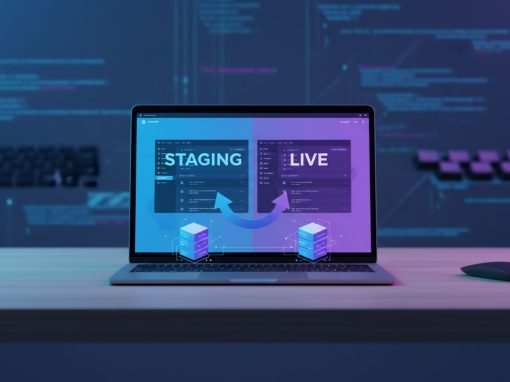
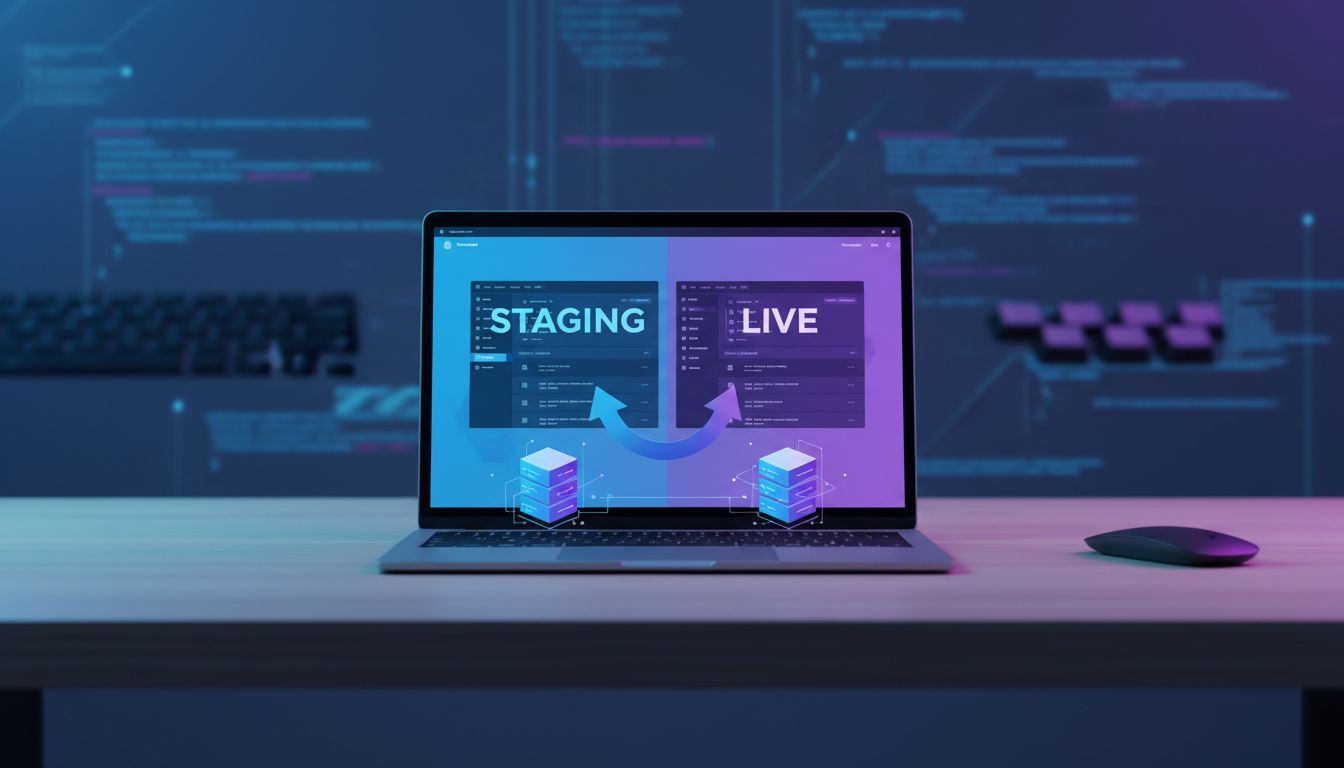
If you're running a professional web design or website maintenance service, using a WordPress staging environment is not optional — it’s essential.
A staging site allows you to test updates, redesign layouts, install plugins, and configure WooCommerce without breaking your live website.
Here’s the complete workflow we use at Hosting-Server.net.
1️⃣ Installing a New WordPress Staging Site
There are 3 common ways to create a staging site:
Option A: Hosting Control Panel (Recommended)
Most quality hosting providers offer:
- 1-click staging environment
- Subdomain staging (e.g. staging.yoursite.com)
- Password-protected access
- Easy push-to-live
Option B: Manual Subdomain Setup
Create:
- Subdomain:
staging.domain.com - New database
- Install fresh WordPress
- Clone files + database
Option C: Plugin-Based Staging
Plugins like:
- WP Staging
- All-in-One WP Migration
- Duplicator
Best for small websites.
2️⃣ Important Settings to Change on Staging
Before doing any work:
✅ Discourage Search Engines
Go to:
Settings → Reading
✔ Tick “Discourage search engines from indexing this site”
✅ Disable Emails (Critical)
Install an email disabler plugin or use:
- WP Mail Logging
- Disable Emails
Prevents accidental customer email notifications.
✅ Update Site Title
Add “STAGING” to:
Settings → General → Site Title
Example:
YourBrand (Staging)
✅ Disable Payment Gateways (WooCommerce)
Set payment to:
- Cash on Delivery
- Test Mode
Never allow real transactions on staging.
3️⃣ Key Plugins to Install on Staging
Here’s what we typically install during development:
📝 Forms
- Fluent Forms (lightweight, powerful)
- Contact Form alternative if required
🛒 For E-Commerce
- WooCommerce
- Stripe (Test Mode)
- Shipping plugins if needed
🎨 Page Builder
- Divi / Elementor / Bricks (depending on project)
🔧 Development Tools
- Query Monitor
- WP Mail Logging
- Regenerate Thumbnails
- Advanced Custom Fields (if needed)
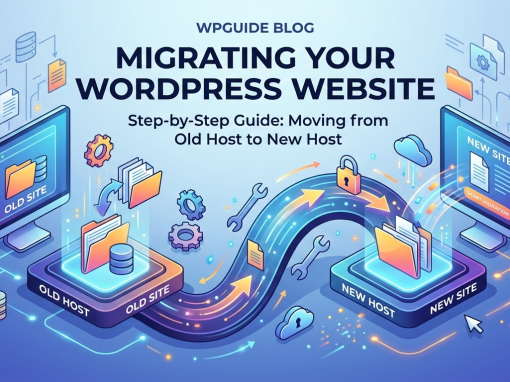
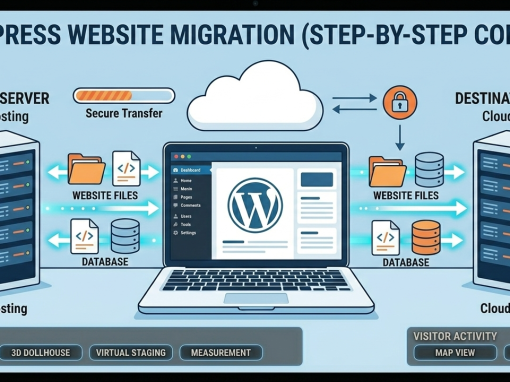
4️⃣ Migrating from Staging to Live
When client approves staging:
Step 1: Backup Everything
- Full file backup
- Full database backup
Never skip this.
Step 2: Push to Live
Options:
- Hosting provider’s “Push to Live”
- Migration plugin
- Manual file + database migration
Step 3: Update URLs
If moving from:staging.domain.com → domain.com
Use:
- Better Search Replace
OR - WP CLI search-replace
5️⃣ Common Problems During Migration (And Fixes)
❌ Broken Images
Cause: Hardcoded URLs
Fix:
- Run search & replace in database
❌ Mixed Content Error (SSL)
Cause: HTTP links inside HTTPS site
Fix:
- Install Really Simple SSL
- Run search replace to force HTTPS
❌ Login Redirect Loop
Cause: Incorrect site URL
Fix:
Update in database:
- siteurl
- home
❌ WooCommerce Emails Sending Test Orders
Cause: Email not disabled
Fix:
Install email disabler during staging.
6️⃣ Essential Plugins to Install AFTER Going Live
Once live, shift focus to:
🔐 Security
- Wordfence
- Limit Login Attempts
🚀 Performance
- LiteSpeed Cache (if server supports)
- WP Rocket
- Autoptimize
📈 SEO
- Rank Math
- Google Site Kit
💾 Backups
- UpdraftPlus
- Server-level backups (preferred)
7️⃣ Post-Migration Issues That Can Arise
⚠️ Permalink 404 Errors
Fix:
Go to:
Settings → Permalinks → Save (without changes)
⚠️ Payment Gateway Not Working
Check:
- Live API keys
- Webhook URLs
- SSL installed correctly
⚠️ Caching Conflicts
Clear:
- Plugin cache
- Server cache
- CDN cache (if using Cloudflare)
8️⃣ Extra Best Practices Most People Forget
🔹 Re-enable Search Engine Indexing
Uncheck:
Settings → Reading → Discourage search engines
🔹 Submit Sitemap to Google
Use:
- Rank Math → Sitemap
Submit to Google Search Console
🔹 Setup Analytics Properly
Install:
- GA4
- Google Tag Manager (if needed)
🔹 Final Testing Checklist
✔ Test contact forms
✔ Test checkout
✔ Test mobile responsiveness
✔ Check page speed
✔ Test all buttons
✔ Confirm backups are running
Next hurdle is migrating from Staging to Live. Learn more on the use of WordPress Migration Plugins for this.