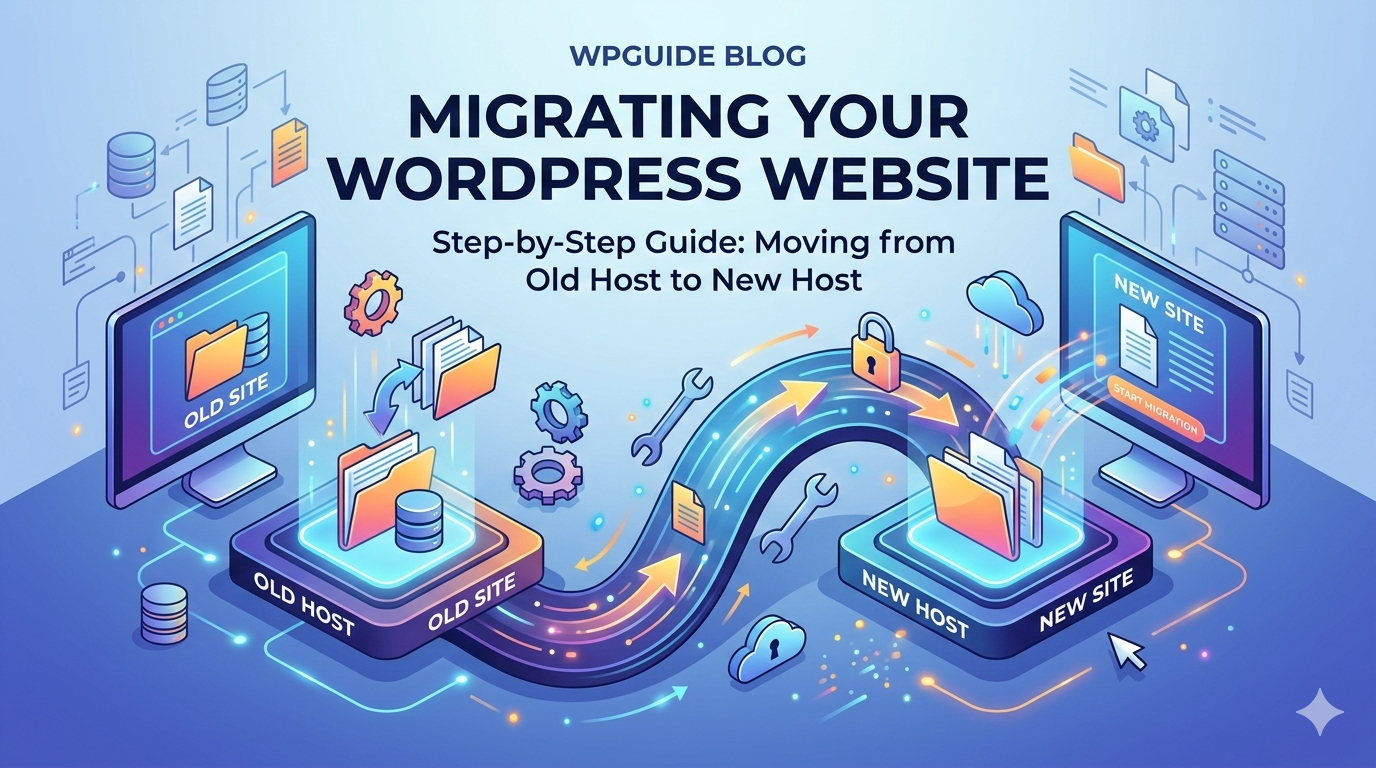
How to Migrate a WordPress Site to a New Host Using Duplicator
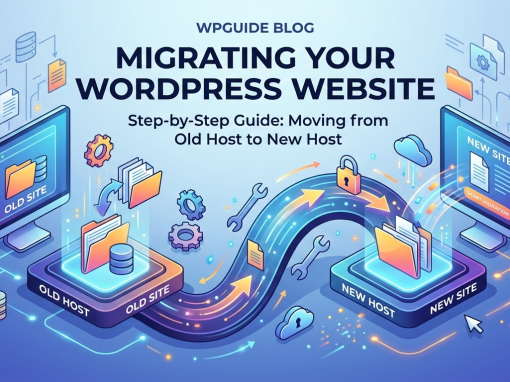
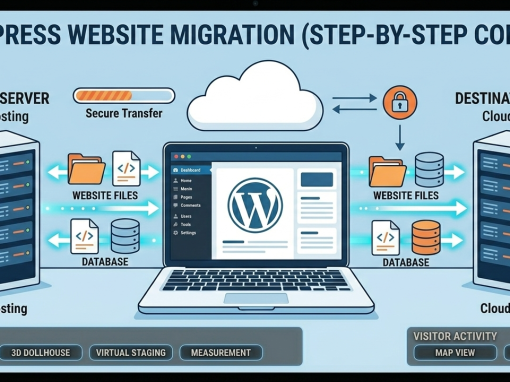
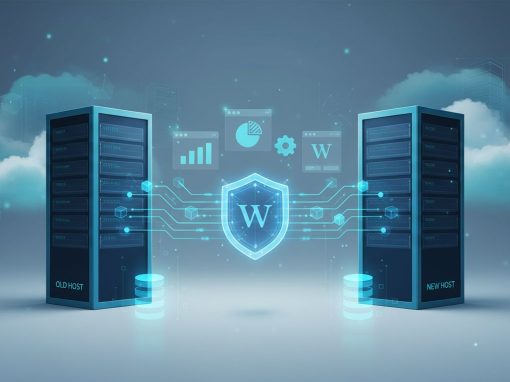
Moving a website from one hosting provider to another may sound technical, but it is actually quite straightforward when you follow the correct steps. With the right tools, migrating a WordPress website can take less than an hour.
This complete WordPress migration guide will show you how to migrate your website safely using the Duplicator plugin, one of the most reliable tools for cloning and transferring WordPress sites.
Whether you are upgrading to faster hosting, moving to a managed server, or transferring your website to another provider, this guide will walk you through the entire process step by step.
By the end of this article, you will know:
• How to prepare your website before migration
• How to export your site using Duplicator
• How to move WordPress to a new host
• How to rebuild the website on the new server
• How to fix common migration problems
• Which plugins you need for SEO, speed, and security
• What checks to perform after migration
If you have been wondering how to migrate a WordPress site, this guide covers everything.
How to migrate a WordPress site to a new host:
- Backup your WordPress website.
- Install the Duplicator plugin.
- Create a migration package.
- Download the archive and installer files.
- Create a new database on the new hosting server.
- Upload the installer and archive files.
- Run the installer script.
- Update permalinks and test the website.
This process allows you to move a WordPress website to a new host without manually transferring files and databases.
What is WordPress Migration?
WordPress migration refers to the process of moving a WordPress website from one hosting environment to another.
This includes transferring:
• Website files
• WordPress database
• Themes and plugins
• Images and media files
• WordPress settings and configurations
A complete WordPress site is made up of two main components:
1. WordPress Files
These include:
• Themes
• Plugins
• Media uploads
• Core WordPress files
These files are usually stored inside:
/public_html
or
/www
2. WordPress Database
The database stores:
• Blog posts
• Pages
• User accounts
• Site settings
• Comments
Without the database, the website content cannot be restored.
A successful migration transfers both the files and the database to the new hosting server.
Signs That It’s Time to Move Your WordPress Site
Many website owners delay migration even when their hosting environment is limiting website performance.
👉 Read The Complete Guide to Choosing Web Hosting
Here are common signs that it’s time to migrate your WordPress site.
Slow Website Speed
If your website consistently loads slowly, your hosting server may be overloaded.
Migrating to better hosting can dramatically improve performance.
Frequent Server Downtime
Unreliable hosting leads to downtime, which affects both user experience and SEO rankings.
Limited Resources
If you frequently hit limits such as:
• CPU usage
• memory limits
• bandwidth limits
your hosting environment may no longer be suitable.
Poor Technical Support
A good hosting provider should provide fast and knowledgeable support.
If support responses take days, it may be time to switch.
Best WordPress Migration Method
There are three common ways to migrate WordPress.
Manual Migration
Manual migration involves:
• Downloading files via FTP
• Exporting the database
• Importing the database manually
This method works but requires technical knowledge.
👉 More of this is covered in WordPress Migration for Dummies (Step-by-Step Guide)
Hosting Provider Migration
Some hosting companies offer free website migration services.
However, quality varies and the process may take longer.
Plugin Migration (Recommended)
Migration plugins automate the process and are the easiest method.
One of the most reliable plugins is:
Duplicator
Duplicator packages your entire website into a single archive file and provides an installer that rebuilds the site automatically.
Preparing Your WordPress Site for Migration
Proper preparation reduces the risk of migration errors.
Before migrating your website, follow these steps.
Step 1: Backup Your Website
Always create a full backup before migrating your site.
Even though Duplicator creates a backup package, having an additional backup ensures that your website can be restored if something goes wrong.
Popular backup plugins include:
• UpdraftPlus
• BackupBuddy
• Jetpack Backup
Store backups both locally and in cloud storage if possible.
Step 2: Clean Your Website
Migration is a good opportunity to remove unnecessary files.
Delete:
• Unused themes
• Unused plugins
• Old backups
• Spam comments
• Temporary files
Cleaning the site reduces package size and speeds up migration.
Step 3: Update WordPress, Plugins, and Themes
Before exporting your site, update everything.
Update:
• WordPress core
• Installed plugins
• Active theme
Outdated plugins can cause migration conflicts.
Step 4: Disable Caching Plugins
Caching plugins may interfere with migration.
Temporarily disable caching plugins such as:
• WP Rocket
• LiteSpeed Cache
• W3 Total Cache
• WP Fastest Cache
You can enable caching again after the new site is working properly.
Step 5: Check Website Health
Open the WordPress dashboard and go to:
Tools → Site Health
Fix any critical issues before migration.
This reduces potential problems when moving the site.
How to Export Your Website Using Duplicator
Now that your website is prepared, you can create the migration package.
Step 1: Install the Duplicator Plugin
Go to:
Plugins → Add New
Search for:
Duplicator
Install and activate the plugin.
Step 2: Create a Migration Package
Navigate to:
Duplicator → Packages
Click:
Create New
Steps:
- Enter a package name
- Click Next
- Allow Duplicator to scan the site
Duplicator will check for issues such as:
• Large files
• Server limitations
• Permission errors
If the scan passes, click:
Build
Duplicator will generate two files.
Step 3: Download the Migration Files
Duplicator creates two important files:
archive.zip
installer.php
The archive file contains your entire website.
The installer file rebuilds the website on the new server.
Download both files to your computer.
Preparing the New Hosting Server
Before installing the migrated website, you must prepare the new hosting environment.
Step 1: Create a New Database
On your new hosting account, create a new empty database.
Typical steps in cPanel:
- Open MySQL Databases
- Create a database
- Create a database user
- Assign the user to the database
- Grant All Privileges
Save these details carefully:
• Database name
• Database username
• Database password
• Database host (usually localhost)
You will need them during installation.
Step 2: Upload the Migration Files
Upload the two files to the new server.
Upload to:
public_html
Files to upload:
archive.zip
installer.php
You can upload files using:
• FTP (FileZilla)
• Hosting File Manager
Step 3: Launch the Installer
Open your browser and visit:
yourdomain.com/installer.php
This launches the Duplicator installer.
Installing the WordPress Website
Follow the installation wizard.
Steps include:
- Accept the license terms
- Enter database details
- Test database connection
- Start installation
Duplicator will automatically:
• Extract website files
• Import database
• Update URLs
• Configure WordPress settings
After installation, the website will be fully restored.
Remove Installer Files
Once installation is complete, delete installation files.
Remove:
installer.php
archive.zip
Leaving installer files on the server creates a security risk.
Duplicator normally provides a cleanup button to delete these files.
Common WordPress Migration Problems (And Fixes)
Even with a migration plugin, some problems may occur.
Here are the most common issues.
Problem: 404 Errors After Migration
This happens when permalink rules are not refreshed.
Fix:
Go to:
Settings → Permalinks
Click Save Changes.
Problem: Database Connection Error
This means WordPress cannot connect to the database.
Check the file:
wp-config.php
Verify:
• Database name
• Database user
• Database password
• Database host
Problem: Broken Images
Sometimes image URLs still reference the old domain.
Fix using a search-replace plugin.
Example plugin:
• Better Search Replace
Replace the old domain with the new domain.
Problem: White Screen of Death
Usually caused by:
• Plugin conflicts
• Incompatible PHP versions
Fix by disabling plugins via FTP.
How to Avoid WordPress Migration Issues
You can prevent most migration problems by following best practices.
Always:
✔ Update plugins before migration
✔ Disable caching plugins
✔ Use a fresh empty database
✔ Ensure the server supports the correct PHP version
✔ Backup your website
Essential Plugins for a New WordPress Site
After migrating your website, install essential plugins to keep your site secure, fast, and SEO optimized.
SEO Plugin
Recommended:
Rank Math SEO
Features include:
• XML sitemap generation
• SEO metadata editing
• Schema markup
• Google integration
Install after migration.
Security Plugin
Recommended:
Wordfence
Features include:
• Malware scanning
• Firewall protection
• Login protection
• Brute-force prevention
Install after migration.
Caching Plugin
Caching significantly improves website speed.
Recommended plugins include:
• LiteSpeed Cache
• WP Fastest Cache
• WP Rocket
Install after migration once the site is confirmed working.
Image Optimization Plugin
Images often slow down websites.
Useful plugins include:
• ShortPixel
• Imagify
• Smush
These plugins compress images automatically.
Analytics and Google Tools
After migration, reconnect your website to Google services.
Important tools include:
• Google Search Console
• Google Analytics
• Google Tag Manager
Submit your sitemap after migration.
WordPress Migration Post-Migration Checklist
Once the website is live on the new server, run through this checklist.
Check Website Pages
Test:
• Homepage
• Blog posts
• Contact page
• Navigation menus
Test Contact Forms
Forms often stop working after migration.
Test:
• Contact forms
• Quote forms
• Email notifications
You may need an SMTP plugin to ensure reliable email delivery.
Verify SSL Certificate
Check that HTTPS loads correctly.
Ensure:
• No mixed content errors
• Proper redirects from HTTP to HTTPS
Check Website Speed
Test performance using:
• Google PageSpeed Insights
• GTmetrix
Install caching plugins if necessary.
Submit Sitemap to Search Console
If using Rank Math, your sitemap will usually be located at:
yourdomain.com/sitemap_index.xml
Submit this sitemap to Google Search Console.
Clear Cache
After migration, clear all caches.
Clear:
• WordPress cache
• CDN cache
• Browser cache
Final WordPress Migration Checklist
Before Migration
✔ Backup website
✔ Update WordPress and plugins
✔ Clean unnecessary files
✔ Disable caching plugins
During Migration
✔ Create migration package
✔ Create new database
✔ Upload installer files
✔ Run installation
After Migration
✔ Fix permalinks
✔ Test forms
✔ Verify SSL
✔ Install SEO plugins
✔ Install security plugins
✔ Install caching plugin
✔ Connect Google tools
If you have one of our Managed Web Hosting Packages, you do not have to worry about this as we handle this for you.
Frequently Asked Questions
The easiest way to migrate a WordPress site is by using a migration plugin like the Duplicator plugin. It packages your entire website into a single archive and automatically rebuilds it on the new server.
Yes. If the migration is performed correctly and URL structures remain unchanged, your SEO rankings should remain stable. Always verify permalinks, sitemaps, and indexing settings after migration.
No. When using the Duplicator plugin, WordPress is installed automatically during the migration process.
To avoid downtime, migrate the site first and test it using the new server URL or temporary domain before updating DNS settings.
404 errors usually occur because permalink rules need to be refreshed. Simply go to Settings → Permalinks and click Save Changes.
SEO plugins such as Rank Math SEO should normally be installed after migration once the website is confirmed to be working correctly.
Yes. Installing a security plugin like Wordfence helps protect your website from malware, brute force attacks, and other security threats.
Most websites only migrate when switching hosting providers or upgrading servers. However, staging environments may require migrations more frequently during development.